
Why Does Your Computer Need Drivers? The invisible translators between hardware and software.
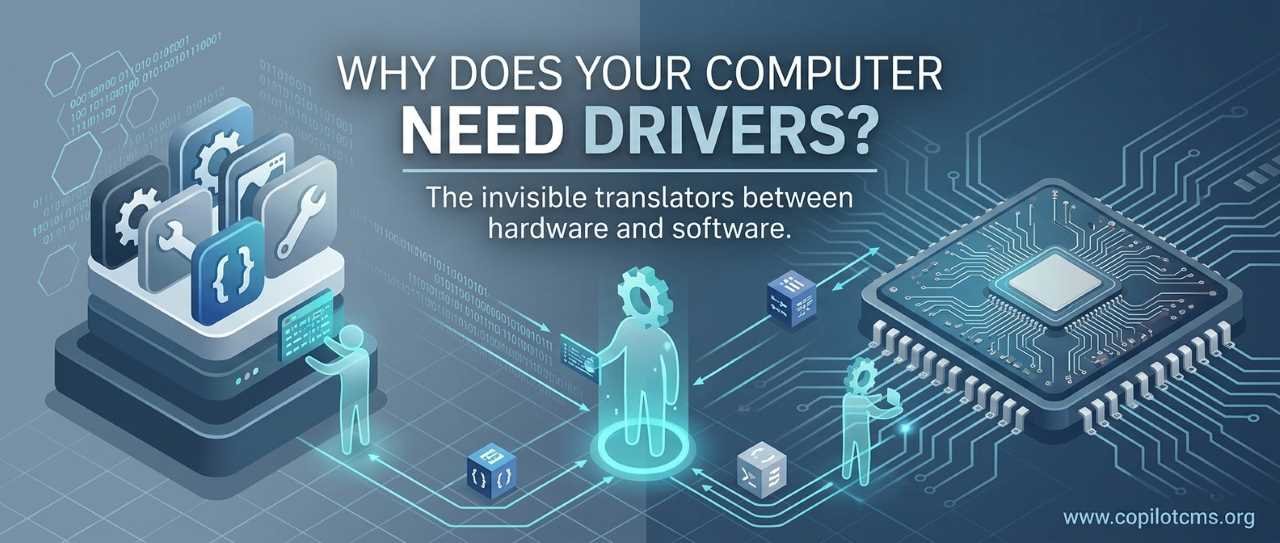
When you plug a printer, keyboard, graphics card, or other device into your computer, the hardware and the operating system somehow manage to work together. The quiet middleman making that possible is a driver—a small piece of software that acts like a translator between hardware and the rest of your computer.
What Is a Driver?
A device driver is software that helps an operating system communicate with a particular piece of hardware. It tells the operating system how to use that hardware and translates the operating system's general instructions into commands the hardware can understand.
Your computer contains many different kinds of hardware: a keyboard, mouse, display, speakers, storage drives, network adapters, USB devices, printers, cameras, and more. Each piece of hardware may work in a different way, even when two devices appear to perform the same job.
Windows, Linux, macOS, and other operating systems cannot be expected to know the detailed operating instructions for every piece of hardware ever made. Drivers solve this problem by providing the necessary instructions.
The Real-World Version: A Translator
Imagine that you are sitting in a room with someone who speaks only English while another person speaks only Japanese. You know what you want to say, but the other person cannot understand you directly.
A translator stands between you. You speak to the translator in English, the translator converts your message into Japanese, and the other person can then act on it. When the other person responds, the translator converts the response back into English.
A computer driver performs a similar job:
- The operating system is one side of the conversation.
- The hardware is the other side.
- The driver acts as the translator.
For example, when you tell your computer to print a document, the application does not normally need to know the precise electronic commands required by a particular printer. Instead, the request passes through the operating system and printer driver, which handles the printer-specific communication.
Why Can't the Operating System Talk Directly to Hardware?
At first, it might seem strange that the operating system needs a translator at all. After all, the operating system is the main software running the computer. Why doesn't it simply control every device directly?
The main reason is variety.
Consider printers. One manufacturer might make a basic inkjet printer, another might make a high-speed laser printer, and another might make a specialized photo printer. They all print documents, but internally they can work very differently.
The same is true for graphics cards, sound devices, Wi-Fi adapters, storage controllers, and many other components.
Without drivers, the operating system would have to contain detailed knowledge of how to operate every individual device. That would make operating systems enormously complicated and difficult to maintain.
Instead, the operating system can use a more general language while the driver handles the hardware-specific details.
What Does a Driver Actually Do?
A driver can perform several important jobs between the operating system and a hardware device.
1. It Receives Instructions from the Operating System
Suppose you move your mouse. The operating system needs to know that the mouse moved and by how much.
The mouse driver helps the computer interpret the signals coming from the mouse and make them available to the operating system in a useful form.
Similarly, when software asks a printer to print something, the printer driver helps turn that general printing request into instructions appropriate for that printer.
2. It Communicates with the Hardware
Hardware does not understand ordinary human language or the high-level commands used by applications. It communicates through electronic signals and specific command structures.
The driver knows how to communicate with the particular device and sends the appropriate instructions to it.
3. It Reports Information Back
Communication goes both ways.
A driver can also receive information from hardware and make it available to the operating system. For example, a storage device might report that an operation has finished, a network adapter might report that data has arrived, or a printer might report that it has run out of paper.
Drivers Are Usually Specific to Hardware
One important thing to understand is that a driver is generally designed for a particular type or family of hardware.
For example, a driver designed for one graphics processor cannot necessarily operate an unrelated graphics processor. Likewise, a printer driver designed for one printer model may not work correctly with another model.
This is why hardware manufacturers often provide drivers for their products. The manufacturer knows exactly how its hardware is designed and can create software that knows how to communicate with it.
Drivers and the Operating System
Drivers also have to work with the operating system they are designed for.
A driver might be made specifically for Windows, Linux, macOS, or another operating system. It may also support particular versions or architectures of that operating system.
This explains why you cannot always take a driver from one computer and assume that it will work on another computer.
The driver has to be compatible with both the hardware and the operating system environment.
Do You Need a Driver for Every Device?
Not necessarily.
Modern operating systems already contain many drivers. They can also automatically download and install drivers for many common devices.
There are also standardized ways of communicating with certain types of hardware. If a device follows a widely supported standard, the operating system may already have a suitable driver.
This is one reason why you can often plug in a basic keyboard or mouse and immediately start using it without manually searching for a driver.
Built-In Drivers
A built-in driver is a driver that is already included with the operating system.
When you install Windows, for example, it comes with support for a large range of common hardware. The operating system can use these drivers immediately, or it may install them when it detects compatible hardware.
This makes modern computers much easier to use than older systems where users frequently had to install drivers manually from disks or downloads.
Automatically Installed Drivers
Operating systems can often detect newly connected hardware and find an appropriate driver automatically.
The process may look something like this:
- You connect a device to the computer.
- The operating system detects that new hardware is present.
- The operating system identifies the device.
- It checks whether it already has a suitable driver.
- If necessary, it may obtain a compatible driver through an update service or another trusted source.
- The driver is installed and the operating system can communicate with the device.
From the user's perspective, this may happen so quickly that it appears that the hardware simply "works."
Why Do Drivers Need Updates?
Drivers are software, and software can be improved, corrected, and updated.
A manufacturer may release a new driver to fix bugs, improve compatibility, increase performance, add support for new operating-system versions, or address security problems.
For example, a graphics driver update might improve compatibility with a newly released game. A network driver update might fix connection problems. A printer driver update might resolve an issue with a newer version of an operating system.
However, newer does not automatically mean better in every situation. A driver update can occasionally introduce a new problem, which is why troubleshooting sometimes involves returning to an earlier driver version.
What Happens When a Driver Is Missing?
If the operating system does not have an appropriate driver for a device, it may not be able to use that device properly.
You might see several different symptoms:
- The device may not work at all.
- The device may work only with limited functionality.
- The operating system may show the device as unknown.
- Some features may be unavailable.
- The device may repeatedly disconnect or malfunction.
- The computer may display an error related to the device or its driver.
For example, Windows may recognize that a graphics device exists but lack the manufacturer's full driver. The computer might still display an image, but advanced graphics features or expected performance may be missing.
What Happens When a Driver Is Wrong?
A missing driver is not the only problem. An incorrect, incompatible, corrupted, or faulty driver can cause trouble too.
Imagine giving a translator the wrong technical dictionary. The translator may still produce sentences, but the other person could misunderstand them. A similar thing can happen when a computer uses an inappropriate driver.
Possible symptoms include:
- Hardware that suddenly stops working.
- Audio or network problems.
- Screen glitches or graphics problems.
- Devices that connect and disconnect unexpectedly.
- System instability or crashes.
- Reduced hardware performance.
Not every hardware problem is caused by a driver, of course. A damaged cable, failing component, power problem, or incorrect setting can produce similar symptoms.
A Simple Example: Your Printer
Suppose you write a document and click Print.
Your word processor does not need to understand every technical detail of your printer. It can make a general request to the operating system: "Print this document."
The operating system then works with the printer system and its driver. The driver knows how that particular printer expects information to be formatted and communicated.
The printer receives the appropriate instructions and produces the document.
From your perspective, you clicked one button. Behind that button, however, several layers of software and hardware worked together.
Another Example: Your Graphics Card
Graphics hardware provides another good example because it performs extremely complicated work.
When a game or application wants to display a scene, it does not normally communicate with the graphics processor by directly controlling every electronic operation itself.
Instead, software uses graphics interfaces and operating-system facilities, while the graphics driver provides the connection to the specific graphics hardware.
This is one reason graphics drivers are particularly important. A properly installed graphics driver can allow software to take advantage of the capabilities of the graphics processor rather than treating it as a very basic display device.
What About Your Keyboard and Mouse?
Keyboard and mouse devices also depend on software support, but you may never notice it because operating systems commonly include drivers for standard input devices.
When you press a key, the keyboard sends information to the computer. The appropriate driver and input system help the operating system interpret that information as a key event.
Gaming keyboards and mice can be more complicated. A basic mouse might work immediately, while special buttons, lighting, macros, or configuration features may require additional manufacturer software.
Drivers vs. Applications
It is easy to confuse a driver with an ordinary application, but they serve very different purposes.
An application is software you use to accomplish a task. A web browser lets you visit websites. A word processor lets you create documents. A media player lets you play music or video.
A driver, on the other hand, primarily helps other software communicate with hardware.
You normally do not open a driver and use it like a word processor. It works behind the scenes.
Drivers vs. Firmware
Another term that can cause confusion is firmware.
Both drivers and firmware are related to hardware, but they are not the same thing.
Firmware is software stored on or closely associated with a hardware device itself. It helps the device perform its own basic functions.
Driver software runs on the computer and helps the operating system communicate with that device.
Think of a car as an analogy. Firmware is somewhat like instructions built into the car's own systems, while a driver is more like the communication layer that allows an outside control system to tell the car what to do.
The exact division can become technically complicated, but this distinction is useful for beginners: firmware belongs with the device; a driver helps the computer communicate with the device.
Where Do Drivers Come From?
Drivers can come from several sources.
The Operating System
Your operating system may already contain a driver for the hardware.
The Hardware Manufacturer
Companies that make graphics cards, printers, motherboards, network adapters, and other devices often publish drivers for their products.
Operating System Updates
Drivers may also be distributed through the operating system's update mechanism.
For safety and reliability, it is generally best to obtain drivers from the operating-system vendor or the hardware manufacturer's official support channels rather than downloading random driver packages from unfamiliar websites.
How Can You Tell If a Driver Is Causing a Problem?
Driver problems can sometimes be identified by looking at what changed immediately before the problem appeared.
For example, suppose your sound worked perfectly yesterday but stopped working immediately after a driver update. That update becomes a reasonable suspect.
Likewise, if you install a new graphics driver and a particular application starts crashing, investigating the driver version may make sense.
On Windows, Device Manager is one of the built-in tools that can help you inspect hardware and its associated drivers.
Common Troubleshooting Steps
- Restart the computer. Some hardware and driver changes do not behave correctly until the system has restarted.
- Check whether the device is recognized. Look for the hardware in the operating system's device-management tools.
- Check for driver updates. Look through your operating system's update system or the hardware manufacturer's official support resources.
- Check cables and connections. A driver cannot fix a physically disconnected or damaged device.
- Consider recent changes. If the problem began immediately after a driver update, software installation, or operating-system update, that change may be relevant.
- Roll back a problematic driver when appropriate. Some operating systems provide a way to return to a previous driver version.
- Reinstall the driver if it appears corrupted. This can sometimes restore normal communication with the hardware.
It is important not to assume that every hardware problem is a driver problem. If a printer has no power, a laptop's Wi-Fi antenna is damaged, or a USB cable has failed, changing the driver will not solve the underlying problem.
Why Drivers Matter So Much
Drivers make the enormous variety of computer hardware manageable.
Imagine if every application had to learn how to communicate separately with every printer, graphics card, sound device, keyboard, storage device, and network adapter. Software development would become extremely complicated.
Drivers provide a layer of separation. Applications can make relatively general requests, while drivers deal with the specific characteristics of the hardware underneath.
This separation is one of the reasons modern computers can support hardware made by thousands of different manufacturers.
The Bigger Picture: Layers of a Computer
It helps to think of a computer as a stack of layers rather than as one giant machine.
At the bottom is the physical hardware: processors, memory, storage devices, graphics processors, network adapters, and other electronic components.
Above the hardware is software that helps control and communicate with it, including drivers.
Above that is the operating system, which manages the computer and provides common services to other software.
At the top are applications such as browsers, games, word processors, image editors, and media players.
The layers work together so that you can perform a complicated task without needing to understand the electronics underneath it.
A Helpful Analogy: A Restaurant
Think of your computer as a restaurant.
- The customer is an application asking for something.
- The manager is the operating system coordinating the request.
- The waiter or specialist interpreter is like the driver, translating the general request into instructions understood by a particular part of the kitchen.
- The kitchen equipment represents the hardware.
The customer does not need to know how every oven, mixer, refrigerator, or coffee machine works. The restaurant's staff and systems handle those details.
Likewise, when you click "Play," "Print," "Save," or "Connect," you generally do not need to know the exact commands required by the underlying hardware. Drivers help take care of that hidden communication.
Are Drivers Only for External Devices?
No. Drivers are not limited to things you plug into your computer.
Many internal components also need software support. Graphics hardware, audio hardware, network controllers, storage controllers, USB controllers, and other components may use drivers.
In fact, a typical computer can have many drivers operating quietly in the background even though the user never thinks about them.
Why You Usually Don't Think About Drivers
The best driver experience is often the one you never notice.
If you connect a keyboard and it works immediately, you probably do not think, "A driver must have translated this hardware." You simply start typing.
This is intentional. Modern operating systems try to hide unnecessary technical complexity from users.
Drivers become noticeable mainly when something goes wrong—when a device refuses to work, a feature disappears, or an update causes unexpected behavior.
Do You Need to Constantly Update Every Driver?
No.
It is not necessary for most users to obsessively update every driver whenever a new version appears. If your hardware is working correctly, there may be little reason to change a stable driver without a particular need.
Driver updates can be useful when they fix a known problem, improve compatibility, address security issues, support new hardware or software, or provide meaningful improvements.
The important lesson is not "always update everything immediately." It is understand what a driver does and update it through trustworthy sources when there is a good reason to do so.
Why This Matters
Understanding drivers gives you a useful mental model for troubleshooting computers.
If a device suddenly stops working, you can ask a few sensible questions:
- Is the device physically connected and powered?
- Does the operating system recognize it?
- Is the appropriate driver installed?
- Has the driver recently been updated?
- Is the driver compatible with this operating system and hardware?
- Does the manufacturer provide a newer or corrected driver?
You do not need to become a hardware engineer to benefit from this knowledge. Simply understanding that a driver is the communication layer between software and hardware can make many computer problems much easier to understand.
The Takeaway
A computer driver is essentially an invisible translator between the operating system and a piece of hardware. It knows the particular language and rules of that hardware and helps the operating system use it without having to understand every electronic detail itself.
Drivers are one of the many hidden layers that make modern computers seem simple. When everything is working, you rarely notice them—but every time your computer successfully prints a page, plays sound, displays graphics, connects to Wi-Fi, or responds to a keyboard, some combination of software and hardware drivers is helping make that interaction possible.