
Why Does Restarting Your Computer Fix So Many Problems?
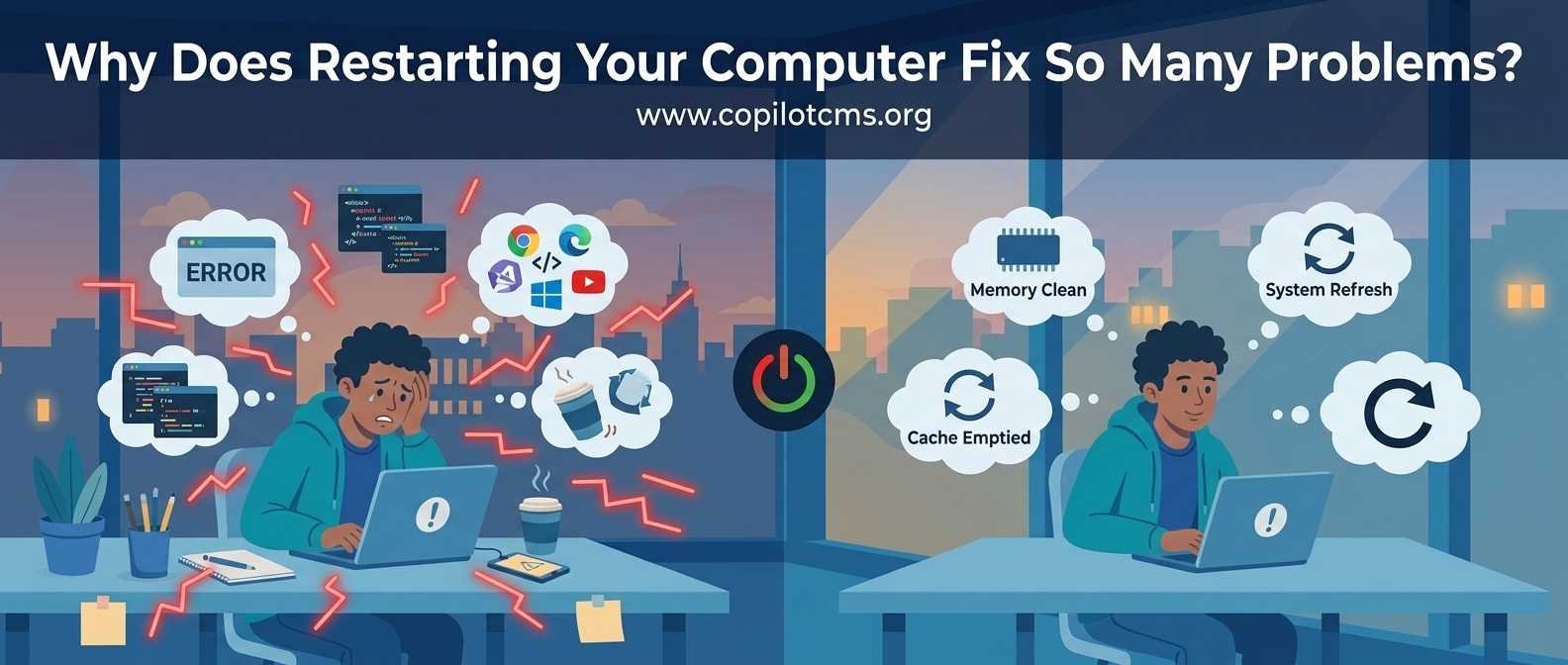
Your computer freezes, a program stops responding, the internet suddenly acts strangely, or something that worked perfectly a few minutes ago simply refuses to work. Then someone says the magical words: “Have you tried restarting it?” Surprisingly often, that simple step actually works. But why?
Restarting isn't computer magic. It gives the operating system and the programs running on your computer a chance to shut down their current activities and start again with a cleaner, more predictable state.
Your Computer Is Doing Far More Than You Can See
When you look at your computer screen, you might see only a few open windows. Behind those windows, however, your computer is constantly busy.
The operating system is managing memory, communicating with hardware, checking network connections, running background services, handling files, processing notifications, and coordinating dozens or even hundreds of individual tasks.
Programs are doing their own work too. A web browser may have many tabs open. An antivirus program may be scanning files. Your email application may be checking for new messages. The operating system may be installing an update in the background.
Most of this activity happens without you noticing it.
Think of your computer as a large office. You may see only the receptionist and a few employees when you walk in, but behind the scenes there are people answering phones, filing documents, delivering messages, maintaining equipment, and keeping the building running.
When something goes wrong in that busy environment, restarting the computer is a little like closing the office, sending everyone home, resetting the equipment, and opening the office again the next morning.
What Actually Happens When You Restart?
When you choose Restart, the computer doesn't simply turn the screen off and back on. A sequence of important things happens.
- Running programs are asked to close.
- The operating system finishes or cancels various tasks.
- Temporary information held in memory is cleared.
- System processes are stopped.
- Hardware and software components are shut down and initialized again.
- The operating system loads again from the beginning.
- System services and startup programs are started again.
The result is a fresh operating environment, without many of the temporary states that had accumulated during the previous session.
RAM: The Computer's Short-Term Workspace
One of the biggest reasons restarting can help is RAM, or Random Access Memory.
You can think of RAM as your computer's desk.
Imagine working at a desk where you temporarily place everything you need: documents, calculators, notes, books, and tools. The larger the desk, the more things you can have immediately available.
RAM works in a similar way. Programs use it as a fast temporary workspace while they are running.
When you open a browser, for example, parts of the browser and its working data are placed in RAM. Open another program and it needs RAM too. Open many programs and tabs, and the computer has more temporary information to manage.
When you restart, much of this temporary workspace is cleared. The programs that start again receive fresh memory allocations instead of continuing with the collection of temporary data from the previous session.
What If a Program Has a Memory Problem?
Sometimes a program doesn't properly release memory after it finishes using it. This can happen because of a software bug.
Imagine someone using your desk and leaving their papers scattered everywhere. Then another person comes along and does the same thing. Eventually, the desk becomes difficult to use even though there is technically enough space.
A faulty program can create a similar situation in memory.
Restarting closes the programs and starts a new session, effectively giving the computer a clean workspace again.
Temporary Problems Can Accumulate
Computers create and manage enormous amounts of temporary information.
Programs may create temporary files. The operating system maintains internal data structures. Applications maintain caches. Network connections are opened and closed. Devices communicate with the operating system. Background services change state.
Most of this is perfectly normal. The problem is that software is written by humans, and software isn't perfect.
A small error in one component may leave something in an unexpected state. Another component may then encounter that unexpected state and behave incorrectly too.
It's similar to a row of people passing messages down a line. If one person misunderstands a message, everyone farther down the line may end up working with incorrect information.
Restarting interrupts that chain and causes many components to establish their state again from the beginning.
Restarting Can Fix Software That Has Become “Stuck”
You've probably seen a program that suddenly stops responding.
Perhaps a window becomes frozen. Maybe clicking a button does nothing. The program might display a message such as “Not Responding.”
This can happen when a program gets stuck waiting for something.
For example, imagine an employee waiting for another employee to deliver an important document. The second employee is waiting for someone else. That third person is waiting for a machine to finish a job.
Everyone is technically working, but nothing is moving forward.
Software can encounter similar situations. A program might be waiting for a file, a device, another program, a network response, or some other operation.
If the program cannot recover by itself, restarting it may solve the immediate problem. Restarting the entire computer goes even further by restarting many of the components that the program depends upon.
It Can Reset Hardware Connections Too
Restarting isn't useful only for software.
Your operating system constantly communicates with hardware such as the keyboard, mouse, display, storage drives, Wi-Fi adapter, printer, sound hardware, and USB devices.
These devices depend on software called drivers that allow the operating system to communicate with them.
A driver is somewhat like a translator.
Imagine that your manager speaks English but a particular machine in the factory understands only another language. A translator allows the manager and the machine to communicate.
Drivers perform a similar role between the operating system and many hardware devices.
If a driver or device gets into an unusual state, restarting the computer can cause the driver to reload and the hardware to be initialized again.
This is one reason restarting can sometimes fix problems such as:
- A USB device that suddenly isn't recognized.
- Sound that has mysteriously stopped working.
- A display behaving incorrectly.
- A Wi-Fi adapter that seems stuck.
- A printer that was working earlier but is no longer responding.
Of course, restarting cannot repair physically damaged hardware. If a cable is broken or a component is failing, rebooting won't magically repair it.
What About Internet Problems?
Restarting can sometimes solve network problems too.
Your computer doesn't simply “connect to the internet” once and remain connected forever. It maintains network settings, connections, services, and communication with your router and other network equipment.
Sometimes one of these pieces gets into an unusual state.
Restarting the computer can cause its networking components to start again and establish fresh connections.
There's also a famous variation of this trick: restarting the router.
Your router is itself a small computer running software. Like your PC, it can occasionally encounter temporary software or networking problems. Restarting it can clear its temporary state and make it establish fresh connections.
Restarting Can Complete Updates
Another major reason computers sometimes ask you to restart is software updating.
Some operating-system files are actively being used while the computer is running. Replacing those files immediately could be difficult or unsafe because programs may currently depend on them.
Instead, an update may prepare the new files and wait until the computer restarts before completing certain changes.
Think of renovating an office while employees are still working inside it. You can replace a few things around them, but some jobs are much easier when everyone has left.
A restart provides that opportunity.
This is why an update may say something like “Restart required”. The restart isn't merely a suggestion to make the computer feel refreshed; it may be an actual part of finishing the update.
Restart vs. Shut Down: Aren't They the Same?
They can look almost identical to a beginner: the computer goes off and then you turn it back on.
But modern operating systems can treat Restart and Shut Down differently.
Some systems use features designed to make startup faster. Depending on the operating system and its settings, a normal shutdown may preserve or reuse certain system information rather than performing exactly the same sequence as a full restart.
That means if someone tells you, “Restart the computer and see if that fixes it,” they aren't necessarily saying, “Turn it off and turn it on again.” They specifically mean use the Restart command.
For troubleshooting, an actual restart is often the better first experiment.
Why Doesn't Restarting Fix Everything?
Restarting is powerful, but it isn't a universal cure.
It mainly helps with temporary problems. If the underlying cause remains, the problem will eventually return.
For example, restarting probably won't permanently fix:
- A damaged hard drive or SSD.
- A physically broken keyboard or mouse.
- A faulty power supply.
- A permanently corrupted system file.
- A serious malware infection.
- A software bug that appears every time you perform a particular action.
- An overheating computer.
- A failing hardware component.
- A problem caused by incorrect settings that remain unchanged after restarting.
In those cases, restarting may temporarily hide the symptoms without removing the underlying cause.
The Difference Between a Temporary Problem and a Real Problem
Here's a useful way to think about it.
Imagine your kitchen sink suddenly drains slowly. You restart the water supply and the sink works normally again. Great—but that doesn't necessarily mean the blocked pipe has been repaired.
The same principle applies to computers.
If restarting fixes a problem once, it may have been a temporary glitch. If the same problem keeps coming back, that's a clue that something deeper needs investigation.
Why Restarting Sometimes Feels Like a Miracle
The reason restarting has such a good reputation is that modern computers involve many interconnected pieces.
A single visible problem can have a surprisingly complicated cause.
For example, your application might appear broken, but the application itself may be fine. It could be waiting for a background service. That service could be waiting for a network connection. The network connection could be associated with a driver that has entered an unusual state.
From your perspective, you simply see:
“My application doesn't work.”
Restarting can reset several layers at once.
It's like resetting an entire chain of machines rather than trying to identify which individual machine in the factory has stopped cooperating.
Why “Just Restart It” Is Actually Good Troubleshooting
Restarting isn't only useful because it sometimes fixes things. It's also a simple troubleshooting experiment.
Suppose your computer is behaving strangely. You restart it, and the problem disappears.
That tells you something important: the problem may have been related to the computer's temporary state, a running program, memory usage, a background service, a driver, or another component that was reset during the restart.
If the problem immediately returns after restarting, however, you have learned something different. The cause may be persistent.
In other words, restarting can help answer a basic diagnostic question:
“Is this problem temporary, or does something continue to cause it?”
A Simple Troubleshooting Routine
When your computer starts behaving strangely, you don't always need to panic. Try a simple progression.
- Save your work. Don't restart while important unsaved work could be lost.
- Close the problem program. If possible, close and reopen it.
- Restart the computer. Give the operating system a fresh start.
- Check whether the problem returns.
- Look for patterns. Does it happen with one program, one device, or one particular task?
- Update software or drivers if appropriate.
- Investigate further if the problem keeps returning.
This approach is much better than repeatedly restarting forever without asking why the problem keeps happening.
What If the Computer Is Completely Frozen?
Sometimes the computer becomes so unresponsive that you cannot use the normal Restart command.
In that situation, you may need to use other recovery methods, depending on the operating system and the severity of the freeze.
A forced shutdown—such as holding the physical power button—is different from a normal restart. It should generally be considered a last resort because the computer may not get an opportunity to properly close programs or finish writing data.
If a computer frequently becomes completely frozen and requires forced shutdowns, don't treat that as normal. Frequent freezes may indicate a software, driver, storage, memory, temperature, or hardware problem that deserves investigation.
Why You Shouldn't Restart Without Saving Your Work
A restart clears temporary working information, and that can include information you haven't saved to permanent storage.
Imagine writing an important letter on a piece of paper and then throwing the paper away before making a copy. Restarting your computer isn't exactly that destructive, but unsaved work can disappear when a program closes unexpectedly.
So before restarting, save documents, finish important downloads if necessary, and make sure you aren't about to lose something important.
Does Restarting Make a Computer Faster?
Sometimes it can appear to.
A computer that has been running for a long time may have many programs and background processes active. Some applications may be consuming more memory than expected. Temporary data may have accumulated. After a restart, many of those processes disappear until they are needed again.
The computer may therefore feel more responsive.
But restarting doesn't permanently make a slow computer faster. If the computer is consistently slow because it has too little RAM, an aging storage drive, excessive startup programs, malware, overheating, or simply demanding software that exceeds its capabilities, the underlying problem remains.
Think of it as cleaning your desk at the end of the day. A clean desk can make tomorrow's work easier, but it doesn't give you a larger desk.
How Often Should You Restart?
There is no universal rule saying that every computer must be restarted at a particular interval.
Modern operating systems are designed to run for long periods, and many computers can do so without problems.
However, restarting when the computer is behaving strangely, after certain updates, or when troubleshooting a problem is perfectly sensible.
If you regularly notice that your computer becomes unreliable after being used for a long time but becomes normal immediately after restarting, that's useful information. It may indicate that a particular program, service, driver, or other component is accumulating a problem over time.
The Bigger Lesson: Computers Have State
One of the most useful ideas for understanding computers is the concept of state.
State simply means the information describing what something is currently doing or what condition it is currently in.
A music player might be paused at three minutes and twenty seconds. A browser might have ten tabs open. A download might be halfway finished. A network connection might be active. A program might be waiting for a response.
All of these are states.
Over time, software can sometimes end up in a state that its developers didn't expect or didn't handle properly.
Restarting is powerful because it throws away much of that temporary state and rebuilds it from a known starting point.
That's the deeper reason behind the famous advice to restart your computer.
Real-World Version: Starting the Day Fresh
Imagine running a busy shop for twelve hours.
Customers come and go. Employees move boxes around. Receipts pile up. Someone puts a tool in the wrong place. A delivery arrives late. A machine briefly stops working and then starts again. Small things accumulate throughout the day.
At closing time, you shut everything down, put things back in their proper places, clean up, and start again the next morning.
The shop didn't necessarily have a serious problem. It simply accumulated temporary mess and activity during normal operation.
A computer is similar. Restarting gives many of its components a chance to stop, reset, reload, and begin again from a cleaner state.
Why This Matters
Understanding why restarting works helps you become a better computer user.
Instead of thinking of Restart as a mysterious ritual, you can see it as a basic maintenance and troubleshooting tool.
If one application suddenly stops working, restarting that application may be enough. If several unrelated things start behaving strangely, restarting the computer can be a sensible next step. If the same problem keeps returning after every restart, that's your signal to look deeper.
The important distinction is this:
A restart can clear the symptoms of a temporary problem, but it cannot permanently repair an underlying problem.
The Takeaway
Restarting fixes so many computer problems because it gives the system a fresh start. It clears much of the temporary information in memory, stops and reloads programs and background services, reinitializes hardware and drivers, refreshes network components, and can allow pending system changes to finish.
Think of it as closing a busy shop at the end of the day and opening it again with everything reset and ready for a new day.
So the next time someone tells you to restart your computer, don't think of it as an old-fashioned computer superstition. It's actually one of the simplest and most useful troubleshooting techniques you have—and now you know why it works.