
What Happens When You Open a Program? From clicking an icon to seeing the application appear
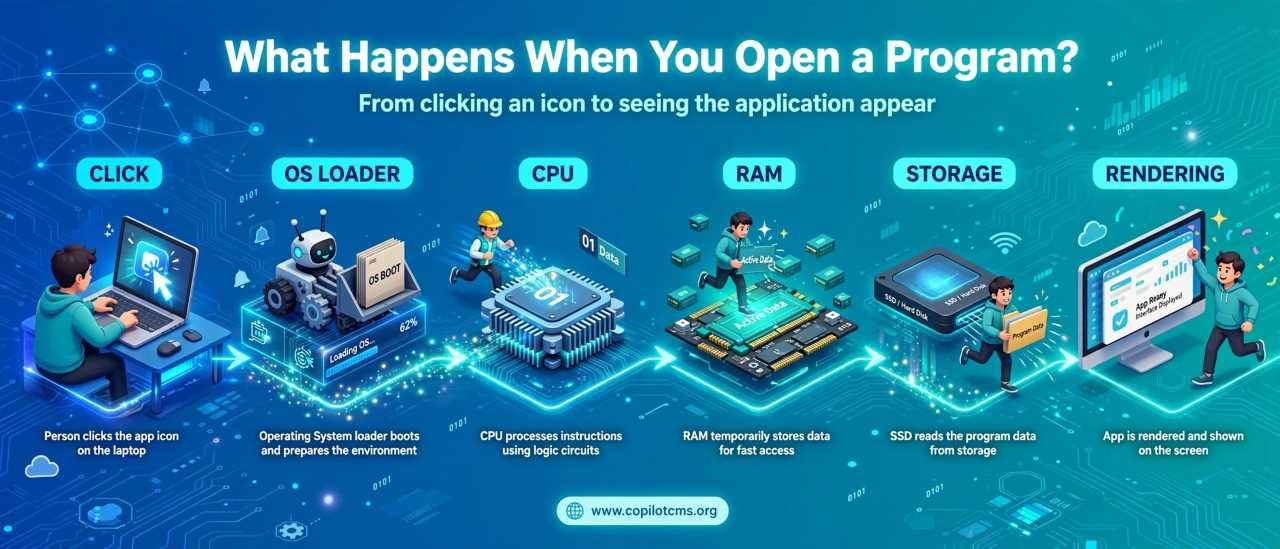
When you double-click an application icon, it can feel as if the program simply appears out of nowhere. In reality, your computer has to perform a surprisingly long chain of steps—from finding the program on storage to loading its instructions into memory and finally drawing its window on the screen.
The Simple Version: What Happens When You Open a Program?
At a very high level, opening a program looks something like this:
- You click or double-click the program's icon.
- The operating system receives your input.
- The operating system identifies which program you want to run.
- It finds the program's files on your storage drive.
- The program's necessary data and instructions are loaded into RAM.
- The operating system creates a running instance of the program, called a process.
- The CPU begins executing the program's instructions.
- The program may load additional files, libraries, settings, fonts, images, or other resources.
- The program creates its interface and asks the operating system to display it.
- You see the application window and can begin interacting with it.
All of this can happen in a fraction of a second for a small application, although larger programs may take several seconds or more.
A Real-World Analogy: Opening a Book
Imagine that a huge library represents your computer's storage drive. Every book on its shelves represents a file. Your application is a particular book in that library.
When you decide to read the book, you do not instantly start reading it. First, you identify which book you want. You find its location, take it from the shelf, bring it to your desk, open it, and then begin reading.
Your computer does something surprisingly similar.
- Storage drive: The library where programs and files are kept.
- RAM: Your desk, where information needed right now is placed.
- CPU: The reader who follows the instructions.
- Operating system: The librarian who coordinates everything.
- Program: The book containing instructions and information.
- Screen: The place where the results of the work are presented to you.
The analogy is not perfect, but it provides a useful mental picture: storage keeps things, RAM holds things currently in use, and the CPU works on them.
Step 1: You Click the Program's Icon
Everything begins with an input from you.
You might double-click a desktop shortcut, select an application from the Start menu, click an icon on a taskbar, or type a command into a terminal. Regardless of the method, you are essentially telling the operating system, "I want this program to run."
For example, if you double-click a web browser's icon, the mouse click itself does not directly start the browser. Instead, the operating system receives the mouse input and determines what that input means.
The icon you clicked may also be a shortcut rather than the actual program file. A shortcut is more like a signpost saying, "The program you want is over there."
What Is a Shortcut?
A shortcut is a small reference that points the operating system toward another file or location.
Think of a restaurant's sign outside a shopping center. The sign is not the restaurant itself; it tells you where the restaurant is. Similarly, an application shortcut usually tells the operating system where the actual executable program is located.
This is why deleting a desktop shortcut usually does not uninstall the application itself.
Step 2: The Operating System Takes Over
Once the operating system understands which application you selected, it takes responsibility for starting it.
The operating system is the software that manages the computer's hardware and provides the environment in which applications run. Windows, macOS, and Linux are examples of operating systems.
The operating system has to answer several questions:
- Where is the program located?
- Is the file accessible?
- Does the user have permission to run it?
- What resources does the program need?
- How much memory should be provided?
- Which libraries or supporting components does it require?
- How should the program interact with the CPU, display, keyboard, mouse, network, and other hardware?
You normally never see these decisions. The operating system handles them behind the scenes.
Step 3: The Computer Finds the Program
The operating system now needs to locate the actual program files on your storage device.
Modern applications are rarely just one simple file. A program may consist of an executable file plus many other files containing images, fonts, configuration information, language translations, libraries, databases, plugins, and other resources.
For example, a photo-editing application might contain:
- An executable file containing the main program.
- Libraries containing reusable pieces of code.
- Icons and interface graphics.
- Fonts and language files.
- Configuration files.
- Plugins or extensions.
- Other supporting data.
The operating system has to locate the relevant pieces before the application can use them.
Step 4: The Program Is Loaded Into Memory
This is where storage and RAM become especially important.
Your computer's storage drive—whether it is an SSD or a traditional hard disk—keeps programs and files even when the computer is turned off. RAM, on the other hand, is temporary working memory used while programs are running.
The operating system loads the parts of the program that are needed into RAM so they can be accessed while the program runs.
Why Not Run the Program Directly From the Drive?
A storage drive is designed primarily for persistent storage. RAM is designed to provide the CPU with very fast access to information currently being used.
Return to the library analogy. Imagine trying to read a book while it remains somewhere on a distant bookshelf. Every time you need another page, you would have to walk back to the shelf.
It is much easier to bring the book to your desk.
RAM is somewhat like that desk. The computer brings the information it needs into a much more convenient working area.
Step 5: A Process Is Created
Once the operating system begins running a program, it creates something called a process.
The word may sound complicated, but the basic idea is straightforward.
A program is the set of instructions stored on your computer. A process is a running instance of those instructions.
Consider a recipe written on a piece of paper. The recipe is like the program. When you actually start cooking using that recipe, you have something happening in the real world. That activity is more like a process.
In the same way, a program sitting on your storage drive is not necessarily doing anything. When you launch it, the operating system creates a running process for it.
One Program Can Have Multiple Processes
The relationship is not always one-to-one. A modern application may use several processes for different tasks.
For example, a web browser may separate parts of its work into different processes so that a problem in one area does not necessarily bring down everything else.
The important point for beginners is simply this:
A program is something that can be stored; a process is a running instance of a program.
Step 6: The CPU Starts Executing Instructions
Now the CPU becomes heavily involved.
Programs are ultimately made from instructions that the computer's processor can execute. The CPU repeatedly fetches instructions, interprets them, and performs the required operations.
At this level, the work may involve things such as calculations, comparisons, moving data, and making decisions. The CPU performs these operations incredibly quickly.
When an application starts, the CPU does not simply "open the program" as one single operation. It works through many individual instructions that cause the program to initialize itself.
What Does "Running Code" Mean?
When people say that a computer is "running code," they mean that the CPU is carrying out instructions provided by software.
Imagine someone following a detailed set of instructions:
- Pick up the box.
- Open the lid.
- Take out the contents.
- Check the label.
- Put the item on the table.
The CPU performs a vastly more complex version of this idea, except its instructions operate on digital data and are executed at enormous speed.
Step 7: The Program Loads More Things
Opening an application does not necessarily mean that everything it might ever need is loaded immediately.
Many programs load additional resources only when they are required. This helps save memory and can make startup faster.
For example, when you open a word processor, it may initially load the components necessary to display its main interface. When you later open a particular document, it may load additional fonts, images, document data, or other components.
This is similar to preparing for a trip. You do not necessarily carry your entire house with you. You take what you need initially and retrieve or prepare other things as the journey continues.
Libraries and Shared Components
Programs often rely on libraries. A library is a collection of reusable software components that applications can use instead of implementing everything themselves.
Think of a kitchen. A restaurant does not need to manufacture its own plates, knives, ovens, and refrigerators every time it prepares a meal. It uses existing equipment.
Software can work in a similar way. Instead of every application creating its own implementation of common functionality, it can use existing components provided by the operating system or other software.
If a required component is missing or incompatible, the program may fail to start or display an error.
Step 8: The Operating System Gives the Program Resources
A running application needs more than just CPU time.
Depending on what it does, it may need access to memory, files, the display, keyboard, mouse, speakers, network connections, printers, cameras, or other hardware.
The operating system acts as the intermediary between applications and much of the hardware.
For example, an application generally does not need to know every electrical detail of your keyboard. It can ask the operating system for information about keyboard input, and the operating system handles the lower-level communication.
Why Does the Operating System Manage This?
Imagine a large office where hundreds of employees want to use the same meeting room, printer, and filing cabinet. If everyone could use everything whenever they wanted, chaos would quickly follow.
A central coordinator can manage access and prevent one person from interfering with another.
The operating system plays a similar coordinating role. It manages resources so multiple programs can share the computer without constantly interfering with each other.
Step 9: The Program Creates Its Interface
At some point, the application needs to show you something.
It might create a window containing a title bar, buttons, menus, text boxes, images, or other elements.
The program tells the operating system what it wants displayed, and the operating system and graphics system work with the computer's display hardware to produce the visible result.
What you see as a simple application window is therefore the result of many layers working together.
From Data to Pixels
Your monitor ultimately displays tiny points of light called pixels. Software has to determine what should appear at those pixels.
For example, when a program displays a button labeled "Save," the computer has to create the visual shapes, text, borders, and other elements that make up that button.
The graphics system and, where appropriate, the graphics processor (GPU) help turn these instructions into the images you see.
Step 10: You See the Application
Eventually, the startup work reaches the point where the application is ready to present its interface.
The window appears on your screen, and it may look as though the program has simply materialized.
But behind that apparently simple moment, the computer may have already:
- Processed your mouse or keyboard input.
- Located the application.
- Read data from storage.
- Allocated memory.
- Created one or more processes.
- Loaded program code and supporting components.
- Started executing instructions.
- Loaded configuration and other resources.
- Communicated with the operating system.
- Prepared the graphical interface.
- Displayed the application on the screen.
And that is only the simplified version.
What Happens After the Window Appears?
Opening the program is not the end of the process. The application usually enters a state where it waits for your input.
This is sometimes described using the idea of an event loop.
The application waits for events such as:
- A mouse click.
- A keyboard key being pressed.
- A window being resized.
- A file being opened.
- A message arriving from another part of the system.
- A timer reaching a particular point.
When something happens, the application responds appropriately.
For example, when you click a "File" menu, the program receives information about the click, determines what was clicked, and then performs the appropriate action.
Why Does One Program Open Faster Than Another?
You may have noticed that some applications open almost instantly while others take several seconds.
There is no single reason for the difference. Startup time can depend on many factors.
Program Size
A small utility may contain relatively little code and few resources. A professional video editor, game, or development environment may need to initialize a much larger collection of components.
Storage Speed
An SSD can generally read data much faster than a traditional mechanical hard disk. If an application needs to read a large amount of information during startup, the storage device can make a noticeable difference.
Available RAM
If the computer has limited available memory, the operating system may have to work harder to manage memory between applications. In some situations, it may use storage as an extension of memory, which is much slower than actual RAM.
CPU Performance
The CPU must execute the program's startup instructions. A more capable processor can often complete CPU-heavy startup work more quickly, although the CPU is not always the limiting factor.
Network Connections
Some applications contact online services when they start. They might check for updates, authenticate your account, synchronize information, or retrieve online content.
If the network connection is slow or a remote server is busy, startup can take longer.
Other Running Programs
Your computer may already be busy running many other applications and background processes. Those programs compete for resources such as CPU time, RAM, storage activity, and network bandwidth.
Why Does a Program Sometimes Freeze While Opening?
A program can appear stuck during startup for several reasons.
It may be reading a large amount of data, initializing a complex component, waiting for another service, communicating with a network server, or encountering an error.
Sometimes the program is working even though the screen does not visibly change.
Think about ordering food at a busy restaurant. If the waiter disappears into the kitchen, you cannot immediately see what is happening. That does not necessarily mean nothing is happening. The kitchen may be preparing your meal.
Software can be similar. A program may be performing substantial work behind the scenes before it can display the next part of its interface.
What If the Program Never Opens?
If an application repeatedly fails to start, the problem could occur at different points in this process.
The Program File Could Be Damaged
If important program files have become corrupted or were removed, the operating system may be unable to start the application correctly.
A Required Component Could Be Missing
An application may depend on libraries or other components that are unavailable or incompatible.
There May Not Be Enough Resources
A computer with very little available RAM or storage space can struggle with demanding applications.
Permissions Could Be a Problem
Operating systems use permissions to control which users and programs can access particular files and resources. If an application does not have the access it requires, it may encounter problems.
The Application Could Have a Bug
Software is created by people, and software can contain mistakes. Sometimes the application itself has a problem that prevents it from starting correctly.
Troubleshooting: What Should You Check?
If a program suddenly becomes slow or refuses to open, you do not necessarily need to understand every technical detail. Start with the simple possibilities.
- Wait briefly: The program may simply be performing a heavy startup operation.
- Check whether the computer is generally slow: Other programs may be consuming CPU, memory, storage, or network resources.
- Close unnecessary applications: Freeing resources can sometimes help.
- Restart the program: A temporary problem may disappear when the application is started again.
- Restart the computer: This can clear certain temporary problems and reset system resources.
- Check available storage: Extremely low free space can cause various system problems.
- Look for updates: A newer version may fix known startup problems.
- Check error messages: They often provide useful clues about what went wrong.
- Reinstall the application if necessary: If important program files are damaged, reinstalling may restore them.
The exact troubleshooting procedure depends on the operating system and application, but understanding the startup process gives you a useful way to think about where the problem might be occurring.
Does Opening a Program Load Everything Into RAM?
No—not necessarily.
This is an important misconception.
A program can be made up of a large collection of files and resources, but the computer does not always need to place every byte into RAM immediately.
Modern operating systems and applications use techniques that allow data to be loaded when needed. This helps programs work efficiently without occupying all available memory from the moment they start.
Imagine a supermarket warehouse. A store does not need to put every item it owns onto the shelves at once. It can bring products out of storage as customers need them.
Computer systems use similar ideas to manage memory efficiently.
What Happens If You Open Several Programs?
Suppose you open a web browser, word processor, music player, and image editor.
Each application may have one or more running processes and may consume some amount of RAM and CPU time.
The operating system has to coordinate all of them.
Your computer does not necessarily execute every program continuously. Instead, the operating system rapidly manages which processes receive CPU time.
To you, this creates the impression that many programs are running simultaneously—and on modern computers, multiple CPU cores can indeed execute multiple streams of work at the same time.
This coordination is one of the operating system's most important jobs.
What Is the Difference Between Opening and Installing a Program?
Installing and opening are two very different things.
Installing
Installation prepares the computer to use the application. It may copy files to the storage drive, configure settings, install supporting components, create shortcuts, and perform other setup tasks.
Opening
Opening starts the already-installed application and creates the running environment it needs.
Using the library analogy again, installation is like putting a new book into the library and cataloging it. Opening the program is like finding that book, taking it to your desk, and beginning to use it.
What Happens When You Close the Program?
Closing a program is essentially the reverse side of the story, although it has its own complexities.
The application may first save information, close files, disconnect from services, stop background tasks, and clean up resources.
The operating system can then reclaim resources associated with the process, including memory that is no longer needed.
This is why closing an application generally makes some RAM available for other programs.
The Whole Journey in One Picture
You can remember the entire process as a simple chain:
Click → Operating System → Find Program → Load Into Memory → Create Process → Execute Instructions → Load Resources → Create Interface → Display Window → Wait for Your Input
Each stage hides many additional technical details, but this simplified sequence is enough to build a solid mental model.
Why Understanding This Matters
Knowing what happens when you open a program makes many everyday computer behaviors easier to understand.
If an application takes a long time to start, you can begin thinking about storage, memory, CPU workload, network connections, or the application's own startup tasks.
If a program crashes immediately, you can understand that something may have gone wrong while the operating system was loading its files, creating its process, initializing its components, or executing its startup instructions.
If your computer becomes slow after opening many applications, you can understand why: those applications are competing for finite resources.
Most importantly, this gives you a foundation for understanding many other computer science concepts. Terms such as process, RAM, CPU, storage, operating system, memory management, and software libraries stop being isolated technical words and start fitting into one larger picture.
The Takeaway
When you click an application icon, your computer does far more than simply "open a file." The operating system finds the program, loads the necessary information into memory, creates a running process, gives it access to the resources it needs, and lets the CPU execute its instructions. The program then initializes its components and creates the interface that eventually appears on your screen.
The next time an application opens almost instantly, remember that an entire chain of events has taken place behind that simple click. What looks like a single action to you is actually a carefully coordinated conversation between software, memory, the processor, storage, and the operating system.