
What Does an Operating System Actually Do?
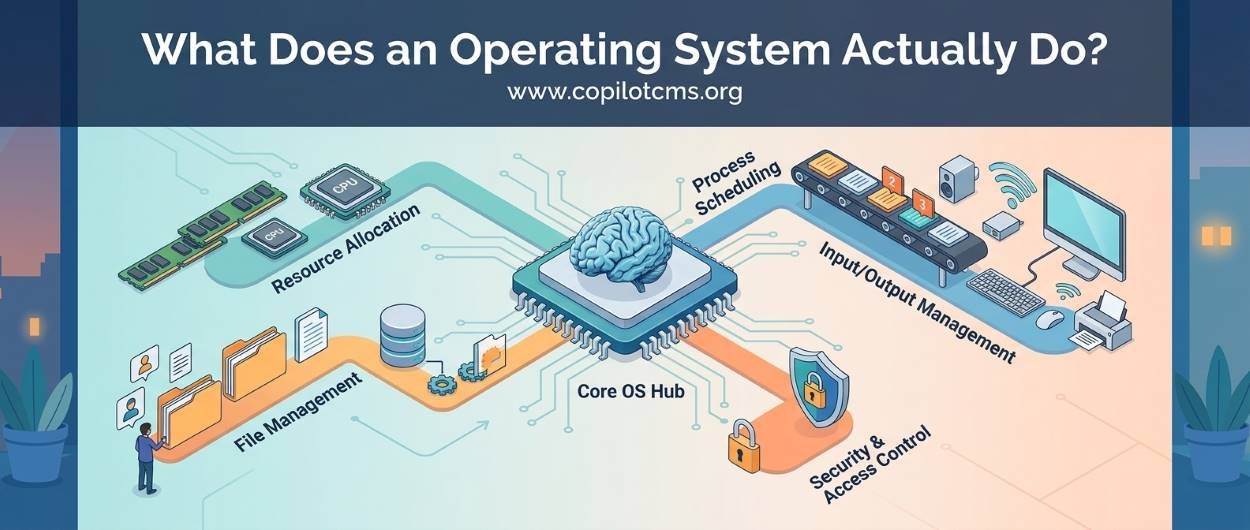
When you turn on a computer, it looks as if the machine simply wakes up and waits for you to click something. But behind that familiar desktop is a remarkably busy piece of software quietly organizing almost everything your computer does. That software is the operating system.
So, What Is an Operating System?
An operating system (OS) is the main software that manages a computer's hardware and provides a way for other software—and you—to use that hardware.
In simple terms, the operating system is the computer's manager. It coordinates the processor, memory, storage, keyboard, mouse, screen, speakers, network connections, and countless other components so that applications can get their work done without having to control the hardware directly.
Common operating systems include Windows, macOS, Linux, Android, and iOS.
You may not think about your operating system very often because it is designed to stay in the background. You open a browser, play a video, save a photograph, or connect a USB drive, and things usually just work. The OS is a major reason they can.
The Real-World Version: Think of a Restaurant
Imagine a busy restaurant.
The customers are like applications. One customer wants a burger, another wants pasta, and another wants coffee. The kitchen is the computer's hardware. The cooks, ovens, refrigerators, knives, and ingredients represent different hardware resources.
Now imagine that every customer had to walk into the kitchen, operate the oven themselves, find ingredients, and decide which cook should prepare their food. Chaos would follow.
Instead, there is a system for handling everything. Orders are received, organized, prioritized, prepared, and delivered to the right customer.
The operating system plays a similar role. Applications say, in effect, "I need some memory," "I need to read this file," or "Please send this information to the screen." The operating system coordinates those requests and works with the hardware to make them happen.
So you can think of the OS as the restaurant manager between your applications and the hardware.
Why Can't Applications Just Talk Directly to the Hardware?
At first, this might sound unnecessary. If a program wants to display something on your screen, why can't it simply tell the screen what to do?
There are several problems.
First, computers contain many different types of hardware. A program would need to understand the technical details of every graphics card, keyboard, printer, storage device, and network adapter it might encounter.
Second, multiple programs need to use the same hardware at the same time. Your browser, music player, antivirus software, and operating system itself may all need the processor and memory.
Third, unrestricted access would create serious security and stability problems. One badly written application could interfere with another application—or even damage important system data.
The operating system provides a controlled layer between applications and hardware.
This means an application can make a relatively simple request such as "open this file" without needing to know exactly how the computer's storage device works internally.
The OS Has Several Big Jobs
Although an operating system is one piece of software from a user's perspective, it performs many different jobs behind the scenes.
Some of its most important responsibilities are managing:
- the processor (CPU)
- memory (RAM)
- files and storage
- hardware devices
- running applications
- security and permissions
- network connections
- the user interface
Let's look at each one.
1. Managing the CPU
The CPU is often described as the "brain" of the computer. It performs the instructions that make programs work.
But a modern computer may have dozens of programs competing for the CPU's attention.
Your web browser might be running. Your email application may be checking for new messages. Your antivirus software may be scanning files. The operating system may be performing background tasks. Meanwhile, you might be watching a video.
So who decides which program gets to use the CPU?
The operating system does.
The OS as a Traffic Controller
Imagine a busy intersection with hundreds of vehicles arriving from different directions. If everyone drove through whenever they wanted, the result would be a disaster.
A traffic controller—or a carefully designed traffic-light system—coordinates who gets to proceed and when.
The operating system performs a similar job with CPU time. It rapidly switches the processor's attention among different tasks.
This happens so quickly that it can appear as though many programs are running simultaneously, even when a particular CPU core is handling one instruction stream at a time.
On computers with multiple CPU cores, multiple tasks can also genuinely execute in parallel. The OS still has to decide how available processor resources are assigned.
2. Managing RAM
RAM (Random Access Memory) is the computer's short-term working area.
When you open a program, the computer generally needs to place some of that program's data into RAM so the CPU can work with it efficiently.
But RAM is limited.
Imagine your desk at home. You might have a filing cabinet containing thousands of documents, but your desk can hold only a small number of papers comfortably at once.
Your storage drive is somewhat like the filing cabinet. RAM is more like the working space on your desk.
The operating system keeps track of which parts of memory are being used, which program owns them, and where available memory can be allocated.
What Happens When RAM Gets Full?
Suppose you open a large number of applications and browser tabs. Eventually, the computer may run short of physical RAM.
The operating system can sometimes move less-active information between RAM and storage using mechanisms such as virtual memory.
Storage is generally much slower than RAM, so excessive memory pressure can make a computer feel sluggish.
This is one reason that simply having a fast processor does not guarantee that a computer will always feel fast. The operating system has to manage several resources together.
3. Managing Files and Storage
When you save a photograph, document, video, or program, the operating system has to organize that information on a storage device.
The storage device might be:
- an SSD
- a hard disk drive (HDD)
- a USB flash drive
- a memory card
- another form of storage
The OS provides a system for organizing information into files and folders.
Your Computer's Filing Cabinet
Think of your storage drive as a huge warehouse.
Without an organizational system, finding one particular document among millions of pieces of information would be extremely difficult.
The operating system provides the filing system that lets you create folders, name files, move them, copy them, delete them, and locate them later.
When you double-click a photograph, you are not personally telling the storage hardware which microscopic locations to read. You are asking the operating system to find and retrieve the file for you.
4. Managing Hardware Devices
Your computer contains many devices that need to communicate with software.
Consider a printer. Different printers have different hardware designs and capabilities. The same is true of graphics cards, sound devices, Wi-Fi adapters, keyboards, webcams, and many other components.
This is where device drivers become important.
What Is a Driver?
A driver is software that helps the operating system communicate with a particular type of hardware.
Think of it as a translator.
You speak one language, while the hardware has its own technical way of receiving commands. The driver helps translate between the operating system and the device.
For example, when an application wants to print a document, it does not normally need to understand every electrical and mechanical detail of the printer. The operating system and its associated software handle much of that communication.
5. Running Applications
When you launch a program, the operating system has work to do.
It must locate the program's files, load the necessary information into memory, allocate resources, and begin executing the program.
It also keeps track of the program while it is running.
In operating-system terminology, a running program is commonly represented as a process.
Program vs. Process
A useful analogy is a recipe.
A recipe sitting in a cookbook is a set of instructions. That is somewhat like a program stored on your computer.
When you actually start cooking the recipe, there is an active activity taking place. That is somewhat like a process.
So a program is stored instructions, while a process is an instance of a program that is currently running.
6. Providing a User Interface
You probably interact with your operating system through a graphical user interface (GUI).
Windows, icons, menus, buttons, taskbars, notifications, settings screens, and file browsers are all familiar examples of graphical interfaces.
The interface gives you a human-friendly way to communicate with the computer.
Instead of typing technical instructions to access a file, you can open a folder and click its name.
But an Operating System Doesn't Have to Look Like Windows
A graphical desktop is only one way to interact with an operating system.
Some systems are commonly managed through a command-line interface (CLI), where users type commands rather than clicking graphical controls.
For example, system administrators and developers often use command-line tools because they can be extremely powerful and efficient for certain tasks.
The important point is that the interface is not the entire operating system. The desktop you see is only one part of a much larger system working underneath.
7. Keeping Programs From Interfering With Each Other
Imagine several people sharing an office. If everyone could freely take anyone else's documents, erase their work, or rearrange their desk, the office would quickly become unusable.
Computers face a similar problem.
Many programs run at the same time, but they should not normally be allowed to access everything on the machine.
The operating system creates boundaries between programs and controls what they are allowed to access.
This helps prevent one ordinary application from simply reading another application's private data or modifying critical system information.
8. Handling Security and Permissions
The operating system also helps decide who is allowed to do what.
For example, your computer may distinguish between an ordinary user account and an administrator account.
An ordinary application might be allowed to read a document in your personal folder but require additional permission before changing an important system setting.
This is similar to an office building where employees can enter their own work areas but need special authorization to enter the server room.
Modern operating systems use many layers of security, including user accounts, permissions, application isolation, secure boot mechanisms, encryption-related features, and other protections.
The exact features vary between operating systems, but the basic idea is the same: not every program should have unlimited power over the computer.
9. Managing Network Connections
When you connect your computer to Wi-Fi or Ethernet, the operating system becomes involved in managing that connection.
It helps applications communicate over the network without requiring every application to understand the hardware details of the network adapter.
When your browser connects to a website, for example, several layers of networking software are involved. The operating system provides important services that allow the browser to send and receive network data.
So when you see a simple Wi-Fi icon in the corner of your screen, there is considerably more happening underneath it than that little icon suggests.
What Happens When You Open a Program?
Let's follow a simple example.
Suppose you double-click your web browser.
- You click the browser's icon.
- The operating system receives your input.
- It identifies the program you want to launch.
- It finds the necessary program files on storage.
- It loads required information into RAM.
- It creates and manages a running process for the browser.
- It gives the browser access to CPU time and other resources.
- The browser asks the operating system for services such as displaying windows, accessing files, and communicating over the network.
- The operating system coordinates those requests with the appropriate hardware and system components.
You experience this as simply "I clicked Chrome/Firefox/Edge and it opened."
Underneath that simple action is a chain of communication between applications, the operating system, and hardware.
What Is the Kernel?
You will often hear the word kernel when people discuss operating systems.
The kernel is one of the most important parts of an operating system. It operates at a privileged level and is responsible for core tasks such as managing CPU resources, memory, devices, and other fundamental system operations.
Think of the operating system as a large organization.
The graphical interface, system utilities, settings tools, and other components are different departments and services. The kernel is closer to the organization's central operations team—the part that deals directly with many of the fundamental resources.
Not everything you see on your screen is the kernel. In fact, much of what you interact with is software that runs around the kernel.
What Is a System Call?
Applications often need operating-system services.
For example, an application might need to:
- open a file
- allocate memory
- create a process
- communicate over a network
- interact with a device
A system call is one of the mechanisms through which a program requests a service from the operating system.
Think of an employee filling out an official request form rather than walking into a restricted room and taking something directly.
The employee asks through the proper channel, and the system decides whether and how to fulfill the request.
You don't normally see system calls happening, but they are an important part of how applications interact with the operating system.
Why Does the Computer Need So Many Rules?
Because modern computers are shared environments.
Imagine a kitchen where ten people are cooking at the same time. They need to share ovens, counters, ingredients, knives, refrigerators, and sinks.
If everyone simply grabbed whatever they wanted, the kitchen would become chaotic.
The operating system establishes rules for sharing the computer's resources.
It decides things such as:
- which program gets CPU time
- which memory belongs to which process
- which applications can access particular files
- which programs can communicate with certain devices
- which users have permission to perform particular actions
The OS is therefore not merely a pretty desktop. It is a resource-management system.
What Happens When You Turn On Your Computer?
The operating system itself has to get started somehow.
When you press the power button, the computer begins a startup process often called booting.
Very roughly, the sequence looks like this:
- The hardware receives power.
- Firmware such as UEFI performs early initialization and checks.
- The computer finds a suitable boot device.
- A bootloader helps load the operating system.
- The operating system's kernel is loaded into memory.
- The OS initializes hardware, drivers, and other essential components.
- System services and the user interface start.
- You eventually see the login screen or desktop.
So when your computer displays the desktop, a significant amount of preparation has already happened.
Why Are There Different Operating Systems?
If operating systems all perform similar basic jobs, why do we have so many?
Because computers have different purposes, hardware designs, security requirements, users, and software ecosystems.
A smartphone has different needs from a desktop PC. A web server has different priorities from a gaming computer. A car's computer system has different requirements from a laptop.
Different operating systems make different design choices.
Windows
Windows is Microsoft's operating system family for PCs and other devices. It is widely used for general desktop computing, business applications, gaming, and many other purposes.
macOS
macOS is Apple's desktop operating system for Mac computers. It is designed to work closely with Apple's hardware and software ecosystem.
Linux
Linux is a family of operating-system environments built around the Linux kernel. Different distributions package the kernel with different software, tools, interfaces, and defaults.
Linux is widely used on servers and also appears on desktops, embedded devices, development systems, and many other types of computers.
Android and iOS
Android and iOS are operating systems designed primarily for mobile devices. They have to deal with concerns that are especially important on phones and tablets, including touch input, battery consumption, sensors, mobile networks, and application permissions.
Is the Operating System Always Running?
For practical purposes, the core operating-system components remain active while the computer is running.
Even when you are doing nothing, the OS may be handling background work such as managing hardware, maintaining network connections, responding to timers, managing memory, handling security tasks, and waiting for input.
That is why your computer can respond almost immediately when you move the mouse or press a key. The system is already there, waiting and managing resources.
What If There Were No Operating System?
Technically, computers can run software without a conventional general-purpose operating system. Many tiny embedded systems work this way.
But imagine trying to use a modern desktop computer where every application had to manage the screen, keyboard, storage, memory, processor, network adapter, and other hardware entirely by itself.
Every program would need to reinvent huge amounts of functionality.
It would be like asking every restaurant customer to build their own kitchen before ordering lunch.
Operating systems make general-purpose computing practical by providing a common environment in which many different applications can operate.
Why Does an Operating System Sometimes Feel Slow?
When someone says, "My computer is slow," the operating system may be involved—but it is rarely as simple as saying "the OS is slow."
Performance depends on many interacting factors.
Too Many Programs
Many applications running at once can compete for CPU time, memory, storage access, and other resources.
Not Enough RAM
If the computer frequently runs out of available RAM, it may rely more heavily on slower storage-based memory mechanisms.
Slow Storage
An older hard drive can make tasks involving files and applications feel much slower than they would on a modern SSD.
Background Tasks
Updates, indexing, security scans, synchronization, backups, and other background operations can temporarily consume resources.
Too Many Startup Applications
Some applications configure themselves to launch automatically when the computer starts. A large collection of unnecessary startup programs can increase startup time and consume resources after login.
What Should You Do When Something Goes Wrong?
Understanding the OS gives you a useful way to troubleshoot everyday computer problems.
Instead of thinking, "The computer is broken," ask which layer might be having trouble.
If an Application Freezes
The problem may be limited to that particular application. The operating system may still be functioning normally.
If the Whole Computer Becomes Unresponsive
The problem may involve system resources, hardware, drivers, or the operating system itself.
If a USB Device Doesn't Work
The problem could involve the physical connection, the device, its driver, permissions, or the operating system's device management.
If a File Can't Be Opened
The file might be missing, damaged, inaccessible because of permissions, associated with the wrong application, or located on storage that has a problem.
If the Computer Won't Boot
The problem can occur at several different stages, including hardware initialization, firmware, boot configuration, storage, or operating-system startup.
This layered way of thinking is useful because it prevents you from immediately blaming one component for every problem.
The OS Is More Than the Desktop
One of the most important ideas to remember is that the operating system is not just what you see on the screen.
The desktop, Start menu, icons, taskbar, settings application, and file manager are visible parts of the computing environment.
Underneath them are many less-visible components responsible for processes, memory, storage, security, networking, hardware communication, and system services.
In other words, the part you see is only the tip of the iceberg.
A Simple Mental Model
If you want one simple picture to remember all of this, imagine a large office building.
- Hardware is the building's physical equipment: rooms, elevators, electricity, desks, phones, and machines.
- Applications are the employees doing specific jobs.
- The operating system is the building's management system.
- The kernel handles many of the most fundamental resource-management duties.
- Drivers help the management system communicate with specialized equipment.
- Files and folders are the filing system.
- Permissions determine who can enter which rooms or access which documents.
- The user interface is the reception desk and control panel through which people interact with the system.
When everything works properly, employees can concentrate on their jobs instead of worrying about how the building operates.
That's essentially what an operating system does for software.
Why This Matters
You don't need to become a programmer or system administrator to benefit from understanding operating systems.
Knowing what an OS does makes everyday computer behavior much less mysterious.
When your computer becomes slow, you can think about CPU, memory, storage, and background processes. When a printer stops working, you can think about hardware, drivers, and system communication. When an application asks for permission, you understand that the OS is enforcing a boundary rather than simply being annoying.
It also gives you a foundation for understanding many other computer-science topics. Processes, memory management, filesystems, drivers, networking, permissions, virtualization, and even some aspects of cybersecurity all make more sense once you understand the operating system's role.
The Takeaway
An operating system is the computer's great coordinator. It sits between applications and hardware, manages resources such as CPU time and memory, organizes files, communicates with devices, enforces permissions, handles networking, and provides the interface through which we use the machine.
The next time you open a program, save a photograph, connect a USB drive, or switch between applications, remember that there is a manager working behind the scenes. You see the application—but the operating system is helping make the entire performance possible.