
What Actually Happens When You Type a URL and Hit Enter?
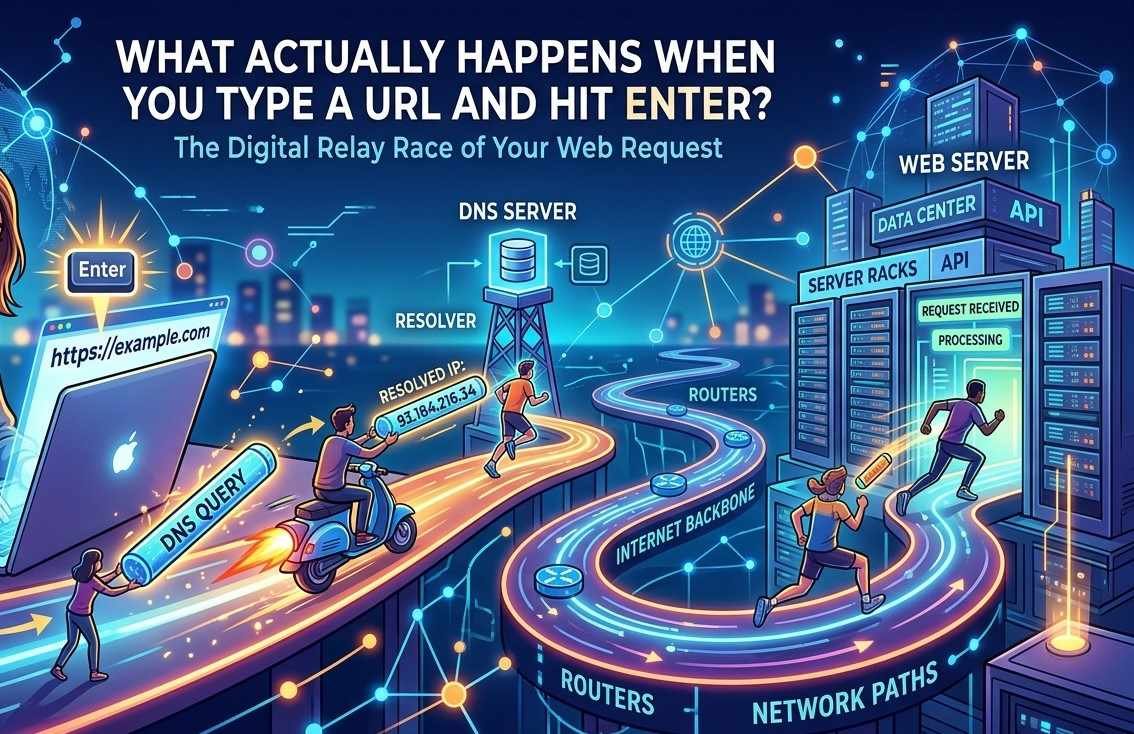
It feels instant. You type a few words, press Enter, and a website appears. But that split second is actually a small relay race involving your device, a handful of strangers' servers, and a surprising amount of coordination.
We do this dozens of times a day without thinking about it: type something like www.example.com into the address bar,
hit Enter, and — almost instantly — a webpage shows up. It feels like magic, or at least like flipping a light switch.
But underneath that "instant" moment, your computer is having an entire conversation with machines scattered around the world.
Let's slow that split second down and walk through it, step by step.
Step 1: Your Browser Figures Out What You're Asking For
The moment you hit Enter, your browser first checks: is this actually a web address, or a search? If you typed something like
best pizza near me, your browser knows that's not a real address and sends it off to your default search engine instead.
But if you typed something that looks like a proper web address — say, https://www.example.com — your browser
recognizes the pattern and prepares to go find that specific destination.
It's worth breaking down what that address actually contains, because every part has a job:
- https:// — the protocol, or "language," used to communicate (more on this below)
- www.example.com — the domain name, the human-friendly name of the destination
- /page-name (if present) — the specific page or resource on that site you want
Step 2: Translating a Name Into a Number (DNS)
Here's something a lot of people don't realize: computers don't actually navigate the internet using names like example.com.
They use numerical addresses called IP addresses — something like 93.184.216.34. Domain names exist purely
for humans, because remembering "example.com" is a lot easier than remembering a string of numbers.
So the very first real task your browser has is figuring out which numerical address corresponds to the name you typed. This lookup process is called DNS (Domain Name System), and it works a lot like asking for directions:
- Your device first checks its own memory — have I looked this up recently? If so, it uses that saved answer (this is the DNS cache).
- If not, it asks a DNS resolver (often run by your internet provider) if it knows the answer.
- If that resolver doesn't know either, it asks other specialized servers up the chain until someone can say,
"Yes,
example.comlives at this exact IP address."
This whole exchange usually takes a tiny fraction of a second, even though it can technically involve several different servers passing the question along like a game of telephone.
Step 3: Opening a Connection to the Server
Now that your browser has the actual address of the website (the IP address), it needs to establish a connection to the computer sitting at that address — known as a server. Think of a server as a computer whose whole job is to sit and wait for requests, then respond with the right information.
Your browser sends a sort of digital handshake to that server, essentially saying "Hi, I'd like to talk to you," and the server responds "Got it, I'm ready." This handshake exists to make sure both sides agree on how they'll communicate before any actual data starts flowing.
A Quick Word About HTTPS
You've probably noticed the little padlock icon next to web addresses that start with https://. That "s" stands
for "secure," and it means this handshake includes an extra step: setting up encryption. Encryption scrambles
the data being sent so that if anyone intercepted it along the way, it would look like meaningless gibberish rather than
readable information. This is especially important for things like passwords or credit card numbers.
Step 4: The Actual Request
With a connection established, your browser sends a formal request to the server — essentially a structured message that says, "Please send me the page at this address." This request also quietly includes some extra details, like what type of browser you're using and what kind of content it can display.
The server receives this request and figures out how to respond. Sometimes that's simple — grab a saved file and send it back. Other times it's more involved: the server might need to check a database, calculate something, or assemble a personalized version of the page just for you (for example, showing your name or your shopping cart).
Step 5: The Server Sends a Response
The server replies with a response, which includes:
- A status code — a short signal indicating what happened. You've probably seen the famous
404, which means "I couldn't find what you asked for." A200means "Success, here's your page." - The actual content — usually a file written in HTML, the language browsers use to structure a webpage.
That HTML file typically references other files it needs too — images, style information (CSS, which controls how things look), and scripts (JavaScript, which adds interactivity). So your browser often has to send out several more requests to gather all the pieces before it can display the complete page — this is part of why some pages load in stages rather than appearing all at once.
Step 6: Your Browser Builds the Page
Once your browser has all the pieces — the HTML structure, the styling, the images, the scripts — it gets to work assembling them into the page you actually see. This process is sometimes called "rendering." Your browser reads through the HTML like a blueprint, applies the styling like paint and furniture, and runs any scripts that need to spring into action (like a dropdown menu or a "like" button).
This is also the stage where caching (as we discussed in a previous post) can speed things up dramatically — if your browser already has a saved copy of an image or script from a previous visit, it can skip re-downloading it entirely.
All of This, In About a Second (Usually)
Here's the wild part: everything above — the DNS lookup, the handshake, the request, the response, the rendering — typically happens in well under a second. Multiple servers, sometimes on different continents, coordinate to hand you a fully built page almost instantly. It's easy to take for granted, but it's genuinely one of the more impressive bits of everyday engineering most of us interact with every single day.
Why This Matters (Beyond Trivia)
Understanding this process isn't just satisfying curiosity — it also explains a lot of everyday tech experiences:
- Why a page sometimes hangs on "loading": it might be stuck at the DNS lookup, waiting on the server's response, or still downloading extra files like images.
- Why "the website is down" and "my internet is down" are different problems: your connection might be fine, but the specific server you're trying to reach could be overloaded or offline.
- Why the padlock icon matters: it tells you the handshake included encryption, which matters a lot if you're about to type in sensitive information.
- Why some sites feel instant and others feel sluggish: it often comes down to how many extra files a page needs to fetch, and how efficiently the server responds.
The Takeaway
Typing a URL and hitting Enter looks like a single, simple action — but it quietly kicks off a rapid relay of lookups, handshakes, requests, and responses between your device and servers you'll never see, all coordinated in the time it takes to blink. The web feels instant not because nothing is happening, but because all of that happens astonishingly fast.